 ELXR
ELXRGross Warp manual
Written for version 1.0.1.1.
Gross Warp draws how playback moves through time and how loud it is: stutters, half time, tape stops, scratches, reverses, rolls, gates and pumps, locked to your song.
Shortcuts are written Mac / Windows: Option / Alt, Cmd / Ctrl.
Quick start
- Put Gross Warp after an instrument or on an audio track, and press play in Live.
- Click the preset name and try a Combo, such as Half Time. Combos set both Time and Volume.
- Switch between Time and Volume to see and edit each envelope.
- Try Dry/Wet for a blend with the original, or lower Depth to make volume dips shallower.
- Use the eight numbered patterns for variations. Switch decides when a pattern change takes effect.
The display
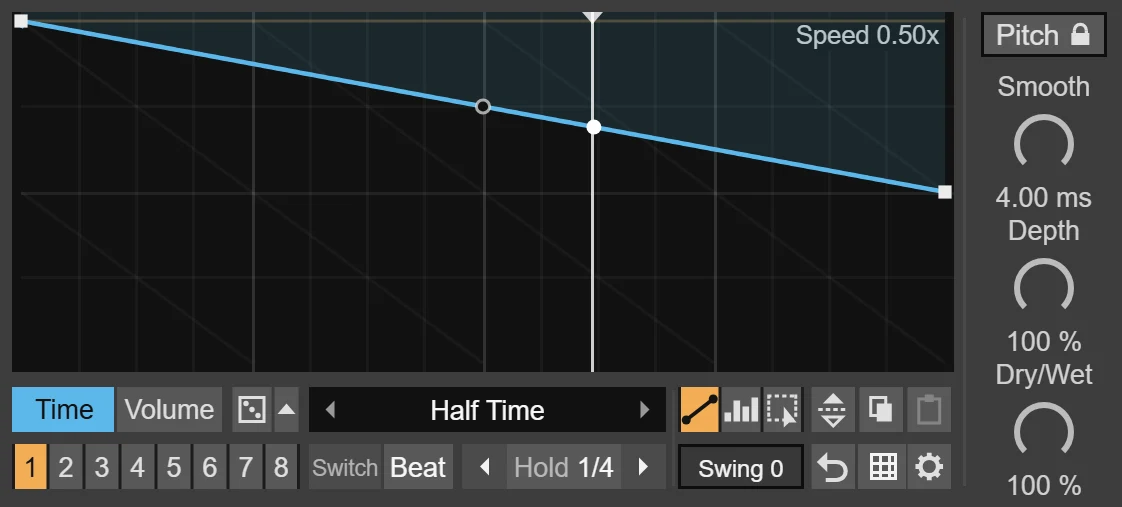
The large display at the top is the editor. Time | Volume below it picks the envelope in view. Default colours are blue for Time and yellow for Volume; Settings lets you change them.
- Time: the top is "now"; the bottom is one whole pattern back. A flat line at the top is normal playback. Across one cycle, a straight line from the top to halfway down gives half speed; top to bottom stops the read position. Steeper downward slopes play backwards. A vertical step jumps to another moment for stutters and repeats. The speed readout describes the drawn slope, rather than measuring the final audio.
- Volume: the level across the pattern, for gates and pumps. At full Depth the envelope can reach silence; lowering Depth brings its dips toward full level.
- The faint waveform shows incoming audio across the pattern. It helps place edits near hits; it is not a meter of the processed output. The brighter curve is a visual guide to Swing, Depth and smoothing, rather than an exact measurement of the audio.
- The playhead follows the pattern while Live plays. Rest on a button for its name and shortcut; Settings > Hints turns tips off.
Drawing
The tools sit in the row under the display.
- Line: click to add a point, drag to move it, drag a round handle to bend a line, or double-click a point to delete it. Points snap to the grid; hold Shift or Cmd / Ctrl to move freely, or Option / Alt for fine movement at quarter speed.
- Block: paint steps on the grid. Useful for stutters and gates.
- Select: drag a box around points (Shift adds), then drag a selected point to move the selection. Delete or Backspace removes it. Copy, Paste and Flip act on the selection; Paste again straight away to repeat it.
- Flip / Copy / Paste: flip the envelope upside down, copy it or paste it. Copy and Paste work between Time and Volume and between Gross Warp devices.
- Grid (#): choose Snap, from 1/4 to 1/32 including triplets, and this pattern's Length, from 1/4 bar to 4 bars.
- Swing: delays alternate sixteenth-note positions in both envelopes. Drag, or click and type a value; double-click for 0.
- Reset (round arrow): restores Normal Time and Full Volume in the current pattern, resets the Dice settings and clears roll History. It keeps that pattern's Length and the other seven patterns.
- Undo / Redo: use Live's Cmd / Ctrl+Z and Shift+Cmd / Ctrl+Z for envelope edits and preset changes.
Presets
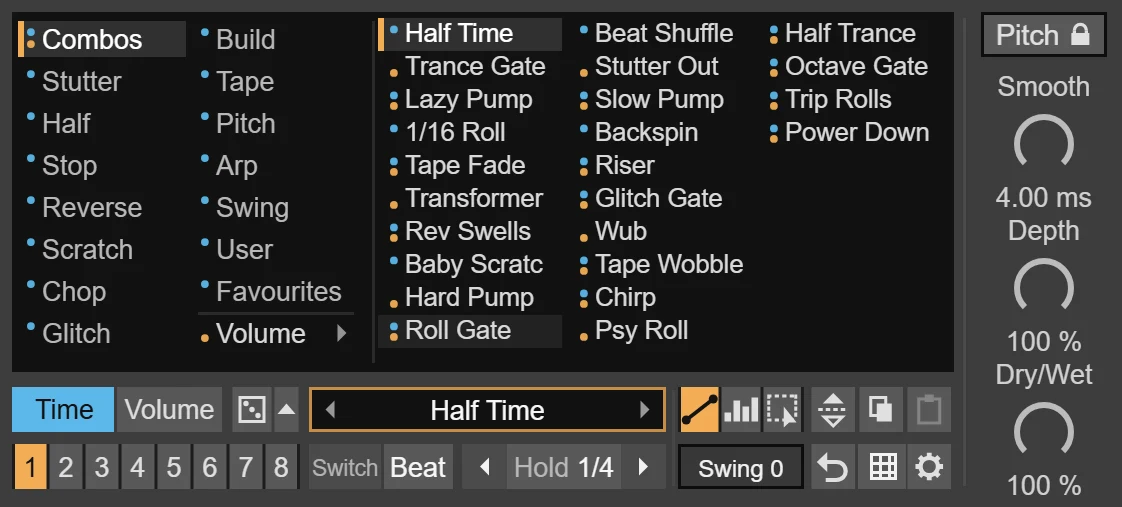
Click the preset name in the black bar. Hover a folder to see its presets, then click one to load it. There are 231 factory presets: 24 Combos, 132 Time envelopes and 75 Volume envelopes.
- Combos set Time and Volume together. Individual Time or Volume presets replace just that lane, keeping the other envelope and the current Length.
- ‹ › cycle through Combos followed by the factory presets for the lane in view. They do not cycle through your User presets. After clicking the preset name or its arrows, Up / Left goes back and Down / Right goes forward. Using another device control or leaving the device disarms those keys.
- User > + Save current saves the envelope in view, then opens a name box. Type a name and press Return; Esc keeps "User n". Hover a User preset for its pencil (rename) and x (delete). A User preset contains one envelope, not Length, Snap, sound controls or Dice settings.
- Favourites: hover a preset and click its star. User presets and favourites are shared by instances that use the same preset file on this computer.
The file is named Gross Warp User Presets.txt. The device looks for your User Library, falling back to a file beside the device if it cannot locate it. Keep the device in your writable User Library and back up this text file when moving computers. After saving an important preset, reopen the list in a fresh device instance to confirm it was written: the current save interface does not report every disk-write failure.
Patterns and Hold
The bottom row holds the performance controls.
- 1–8: eight patterns with separate Time, Volume and Length. Click to switch; Option / Alt-click another pad to copy the current pattern there. Automate Pattern to switch in the arrangement.
- Switch — Now / Beat / Bar: controls when a pattern change takes effect. The destination pad blinks while waiting. Direct envelope edits take effect immediately.
- Hold Last (left arrow): loops a recent piece of the incoming audio. Hold Next (right arrow): records the next piece, then loops it. Click the active arrow again to release it. Only one Hold mode is active at a time.
- The middle Hold label sets length: 1/16, 1/8, 1/4, 1/2 or 1 Bar. Hold uses its own start grid, independently of Switch: 1/16 and 1/8 start on their respective note boundaries; 1/4 and longer start on the next beat. The Volume envelope still shapes the held sound while Live plays.
Timing examples here assume 4/4. The internal grid divides a four-bar transport cycle into 16 beats; check Hold and beat-labelled timing against your arrangement when using another time signature.
Dice and Evolve
- Dice rolls a new pattern from styles including stutter, tape, reverse and glitch. The small arrow beside it opens its options.
- Evolve: Off, Roll (new patterns) or Drift (changes to the current one). Every sets the interval, from 1 beat to 4 bars. The title shows OFF, RUNNING or PAUSED. Click Dice while Evolve is running to pause; click again to resume.
- Lanes: change the lane in view or both Time and Volume. Complexity controls how much happens; adjusting it after a roll reshapes that roll.
- Random / Mutate: make a new pattern or change parts of the current one.
- History keeps the last four rolls. Click one to return to it. Those envelopes are saved with the Live Set; Reset clears the History list.
Sound
The right-hand column contains the sound controls.
- Pitch lock (Keep Pitch): Tries to preserve pitch during speed changes. Off gives tape-style pitch changes and is needed for the intended Pitch and Arp preset effects. Short grains can add texture, especially on sustained notes and vocals. Compare both settings on your material.
- Smooth: 0–30 ms; default 4 ms. Softens jumps, speed changes and volume edges. More smoothing can make volume attacks later and softer. Even at 0, a small minimum smoothing remains. Listen against the beat when shaping sharp gates.
- Depth: Amount of the Volume envelope. At 0 the volume envelope has no effect; Time effects and Hold can still be active.
- Dry/Wet: Blends original and processed audio. At 0 you hear the original.
Faster playback uses filtering to reduce aliasing. Extreme speed-ups can still produce audible artifacts, especially on bright material. Keep Pitch adds processing work; compare its sound and CPU use before enabling it across many tracks.
Settings (the gear)
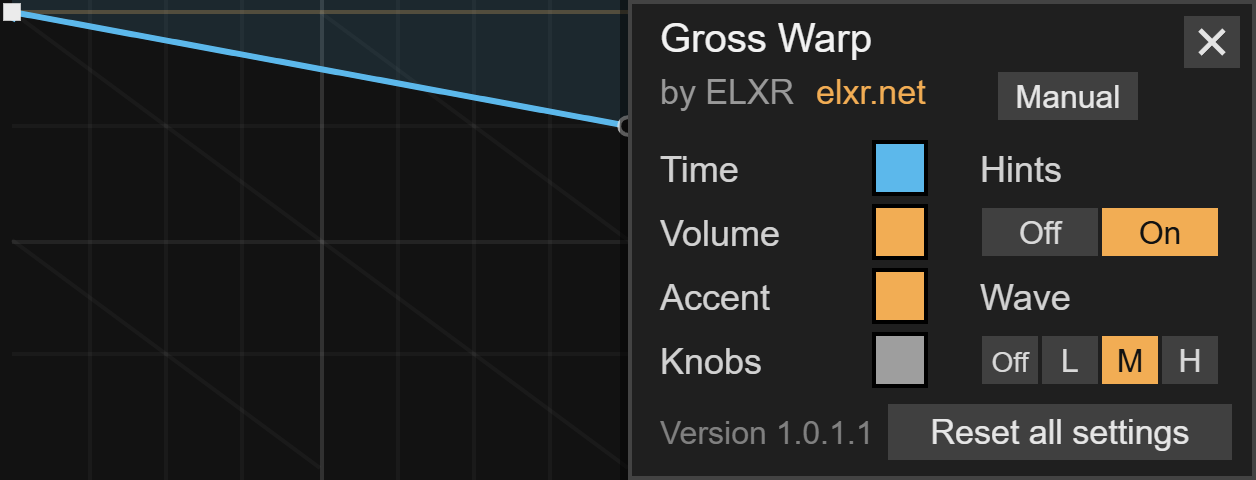
Manual opens this guide. elxr.net opens the website. The four swatches set Time, Volume, Accent and Knob colours. Hints toggles tips; Wave sets waveform brightness (Off, Low, Medium, High).
Reset all settings restores these appearance options, including Hints on and Wave Medium. It does not reset your envelopes or sound controls. Appearance settings are saved with the Live Set.
Saving, stopping and export
Save the Live Set to keep all eight patterns, Snap, Switch, the sound and Dice parameters, both A/B states and the four-entry roll History. User presets and favourites also need their separate text file when moving computers. Hold's captured audio is temporary; Hold starts off when the device loads.
The Time and Volume patterns need Live's transport running. When it stops, those effects settle back to normal playback, but an active Hold can continue looping while the audio engine runs. Turn Hold off to return to the incoming signal.
Gross Warp reports no added host latency; the Time envelope deliberately replays earlier audio. Check the end of a Freeze or export: Live can stop the transport after the last clip on a frozen track, changing the effect's tail. Resample or export enough extra time when that tail matters, and compare the rendered ending with playback.
Install
Drop Gross Warp.amxd on an audio track, or save it into your User Library under Presets / Audio Effects / Max Audio Effect. Requires Ableton Live 12 with Max for Live. Questions: [email protected].