 ELXR
Bass Enhancer manual
Written for version 5.21.1m.
Small speakers can't play deep bass, so on a phone or a laptop a bass line can disappear. Bass Enhancer adds harmonics above the bass that those speakers can play, so your ear still hears the note. The harmonics follow every note, so they stay in tune.
Click any knob and type a value.
Quick start
- Put Bass Enhancer on your bass, 808 or kick-and-bass bus. It loads on the Warm Natural preset.
- Turn on Phone for a rough check of the bass through a steep high-pass filter. Turn up Harmonics until the bass line comes back, then turn Phone off and check it still sounds right on your main speakers.
- Use Character to choose between warm (even) and gritty (odd) harmonics, and Focus to keep the low mids clean.
- Press Delta to hear only what is being added, and Compare to hear the original at a matched level.
The display
- Grey shows the input; cyan shows the processed output. Harmonics view uses one bell per harmonic of the detected note. Small dots mark harmonic positions: filled for even, hollow for odd. Use Delta to hear the added signal separately.
- When you turn Focus or Air, an orange (Focus) or white (Air) line shows for a moment where the added layer starts or stops, with the value at the top of the display. Set both with their knobs.
- Settings > View switches between this Harmonics view (up to 4 kHz) and a Spectrum view (up to 12 kHz).
Controls
| Control | What it does |
|---|---|
| Harmonics | Level of the added signal (0 to 100 %). At 0, no harmonic layer is added. Output, Auto Gain and the listening buttons can still affect what you hear; Safe still catches peaks above -1 dBFS. |
| Drive | How hard the bass hits the harmonic generator (0 to 30 dB). More drive gives denser harmonics. Attacks and decays keep their natural shape. |
| Character | Left emphasises even harmonics (warmer, rounder), right odd harmonics (grittier). Applies to the added presence and to Body. |
| Focus | High-pass cutoff of the added presence (250 Hz to 1.8 kHz). Higher values shift that layer upward. |
| Air | Where the added presence stops (1.5 to 10 kHz). Lower is darker and smoother. Your dry bass and Body are not affected. |
| Body | Adds quiet mono harmonics in the 150 Hz to 1.2 kHz range for extra weight on small speakers. It is not a sub oscillator. |
| Output | Final level, -18 to +6 dB. It does not change the drive. |
Listening buttons
The four small buttons under the display, from the left: Phone, Delta, Auto Gain and Compare.
- Phone: monitor through a high-pass filter, an approximate small-speaker check. The effective filter cutoffs are Phone 128 Hz, Laptop 128 Hz and Small Speaker 64 Hz; it has no button of its own: it is the Speaker parameter, which you can automate or set from Live's parameter list. Turn Phone off before exporting; it also resets to off when the device loads.
- Compare: hear your original sound at about the same loudness as the processed sound, so you judge the tone and not the volume. Compare wins over Delta.
- Delta: hear only the added signal. Resets to off when the device loads.
- Auto Gain: slow level matching that turns the output down (up to 6 dB) when the added harmonics make it louder. It never boosts tails.
Presets
Click the preset name to open the list; the arrows step through it. 12 presets are built into the device: Warm Natural, Sub Translator, Pluck Detail, Dark Weight, Reese Edge, Psy Definition, Round Midbass, Clean Presence, Growl, Soft Electric, Air Detail and Mono Body. An edited preset is marked as changed.
Settings (the gear)
The small gear at the bottom right of the display opens the Settings card; the x at its top right closes it.
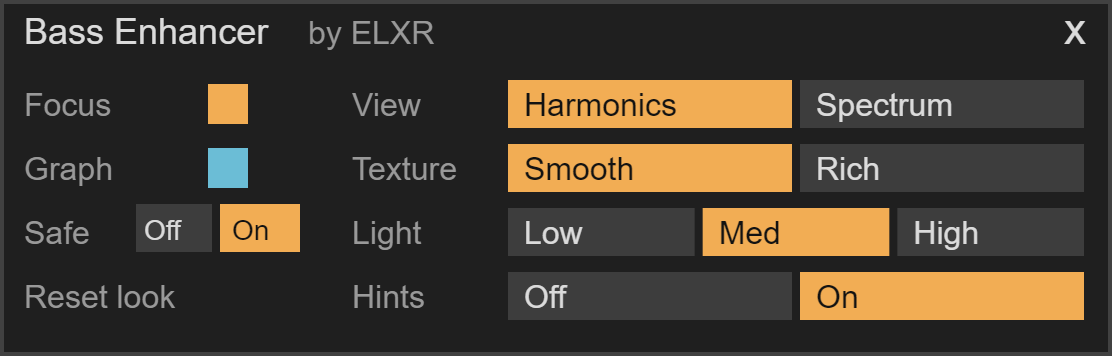
- Focus and Graph: the colour of the accents (and the Focus line) and of the processed-output graph. Click a square to pick one of nine colours or Default; the x next to it goes back to the default.
- Safe (on by default): peak protection at -1 dBFS, linked across both channels. It has no lookahead, so very hot settings can reshape transients; it is a sample-peak guard, not a true-peak limiter.
- Reset look: puts the colours, Light and Hints back to their defaults.
- View: Harmonics or Spectrum.
- Texture: Smooth (the classic voice) or Rich (stronger even-harmonic colour). Both are antialiased.
- Light: display brightness, Low, Med or High.
- Hints: short explanations at the top of the display when you hover a control.
Good to know
- Bass Enhancer adds no latency.
- Bass Enhancer mixes a harmonic layer with the original. Where the layers combine near Focus or Air, some existing harmonics can get quieter. Use Compare to judge the full result and Delta to hear the added layer.
- This Bass Enhancer is a rebuilt engine with new controls and presets. Keep the earlier Bass Enhancer in older projects that need the original sound.
- Links to the ELXR website, this manual and feedback are not in the device yet; they come with a later update. Questions: the email below.
Install
Drop Bass Enhancer.amxd on an audio track, or save it into your User Library (Presets / Audio Effects / Max Audio Effect). Needs Ableton Live with Max for Live, on Mac or Windows. Questions: [email protected].