 ELXR
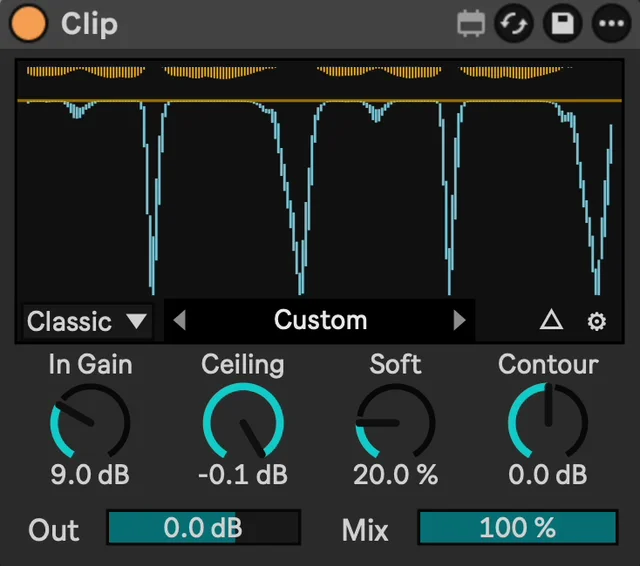
Clip
Control peaks or push into distortion with a clean oversampled clipper, a scrolling picture of the clip and a Detail mode that brings back the highs.
Already own Clip? Get the latest version →
Hear the difference
Pick the 808, snare or synth from the Clip video, with Clip set exactly as in the video. Off and Clip are matched in loudness, so you hear the change, not a volume jump. Switch while it plays.
What it does
Clip is a compact oversampled clipper for Ableton Live, built to feel like a stock device. Drive a sound into the Ceiling to tame peaks, shape transients or push it into distortion, and watch it happen on a scrolling picture of the clip stage. Drag the yellow line to set the Ceiling right on the waveform.
Three modes: Classic for clean clipping with an adjustable soft knee, Fold for aggressive wavefolding, and Detail, which clips like Classic and then brings back the high detail the clip cut off, with its own amount and frequency. 18 presets for drums, bass, mixes and sound design. Zero latency by default.
Inside Clip
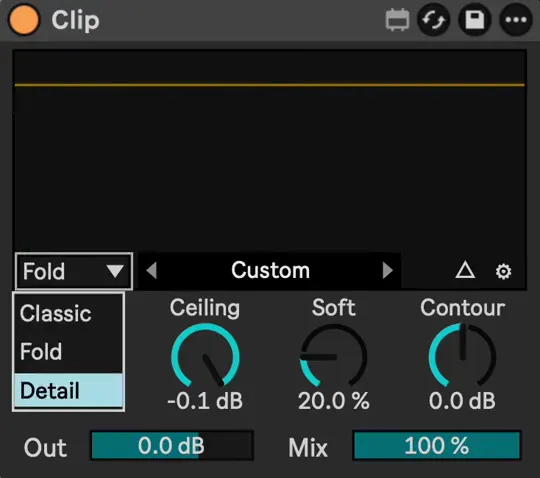
Classic, Fold and Detail
Clean clipping with a Soft knee from hard to round, wavefolding for grit, or Detail to keep the snap of clipped drums.
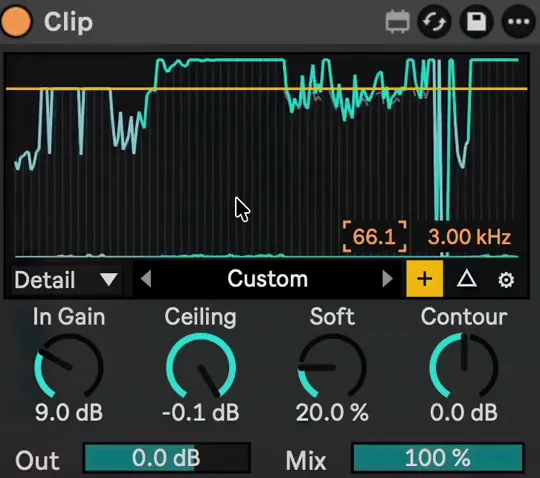
Detail brings the highs back
Detail returns the high frequencies the clip removed, 0 to 100 %, above a frequency you choose from 500 Hz to 12 kHz. Click the + to show or hide its values.
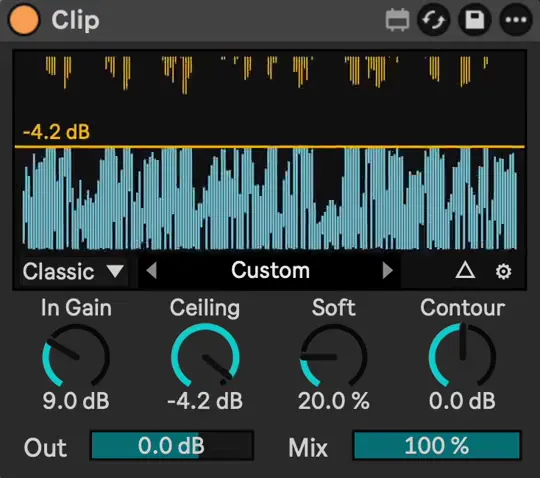
Drag the Ceiling
Set the clip level right on the scrolling waveform: blue is the output, yellow marks show how far the input goes over.
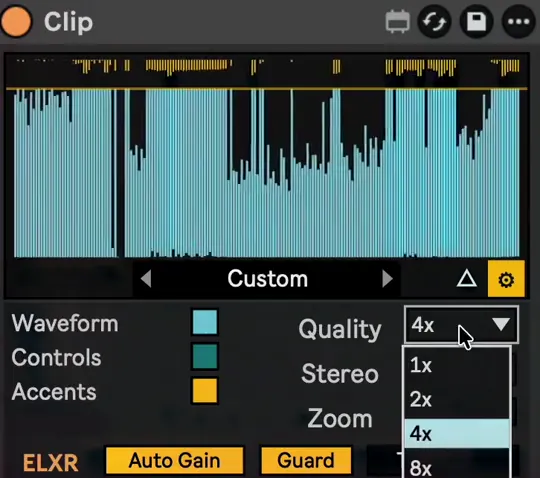
Oversampling up to 8x
Run the clipper at 1x, 2x, 4x or 8x: 4x is clean for most material, 1x is the raw digital crunch some drums like.
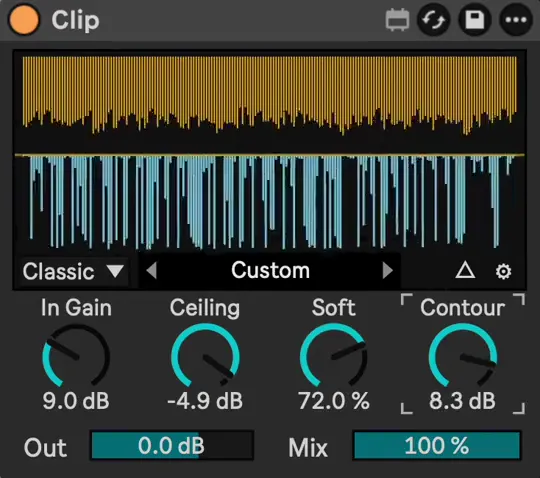
Contour, Guard and True Peak
Tilt the tone into the clipper with Contour. Guard keeps restored peaks under the Ceiling; True Peak also catches the peaks between samples (0.5 ms, off by default).
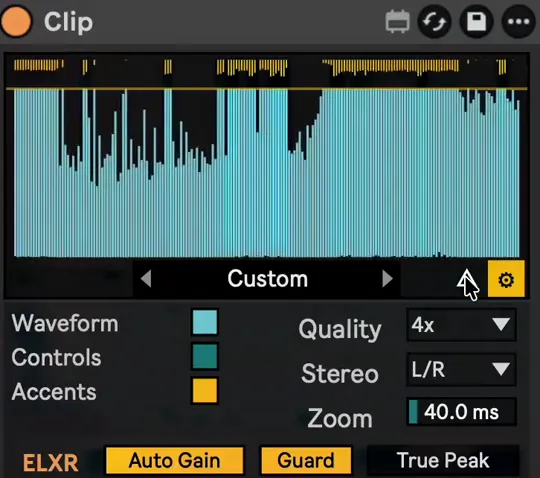
Auto Gain, Delta and Mid/Side
Auto Gain keeps the level steady so you hear the tone. Delta plays only what the clip removes. Clip left and right, or the middle and the sides separately.
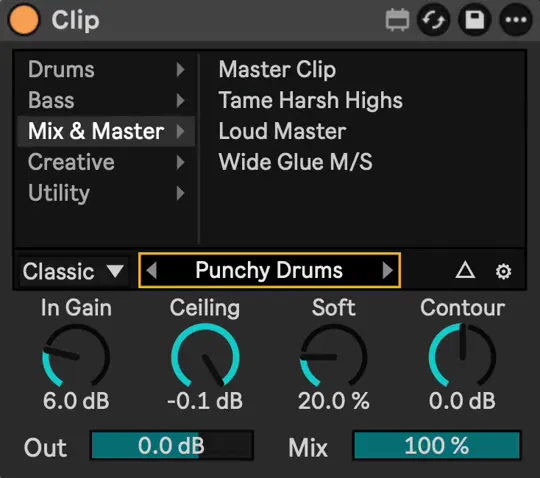
18 presets
Punchy Drums, Snare Crack, 808 Grit, Master Clip, Fold Fuzz and more, in Drums, Bass, Mix & Master, Creative and Utility.
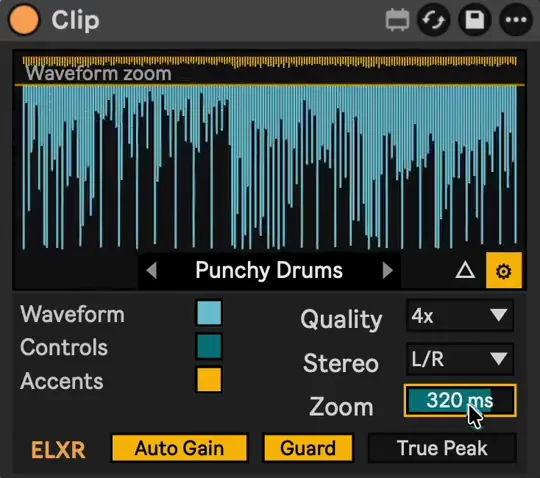
Device colors and visualizer zoom
Zoom the visualizer in or out, and pick your own colors for the waveform and the cut marks in Settings.
See Clip in action
// Technical specsLatency, channels, sample rate
- Latency
- None (0 samples) by default. True Peak adds 23 samples (0.5 ms at 48 kHz); Live compensates
- Oversampling
- 1x, 2x, 4x (default) or 8x
- Channels
- Stereo in / stereo out, L/R or Mid/Side
- Sample rate
- Any rate Live runs at
Questions
What do I need to run it?
Ableton Live with Max for Live, which comes with Live Suite. It works on Mac and Windows.
Is it a one-time purchase?
Yes. You pay once and download the .amxd file. No subscription.
Requirements & install
- Ableton Live with Max for Live (Suite, or Standard with the Max for Live add-on). Mac and Windows.
- Zero added latency unless you switch True Peak on.
- Download Clip.amxd and drag it into your User Library, or onto any track. The manual is online and in the device (Settings, ELXR, Manual).