 ELXR
Disperser manual
Written for version D30m.
Disperser delays each frequency by a different amount, so snares, kicks and plucks turn into zaps, pews and springy lasers. The display shows incoming energy and predicts how the zap will unfold.
Click any knob or box and type a value.
Quick start
- Drop Disperser on a snare, a clap, a pluck or a drum loop. It loads on the Focused preset, a gentle starting point.
- Turn up Amount for a longer, more obvious zap, and set Freq to where the zap should land.
- Raise Pinch for a sharp, ringing laser; lower it for a soft smear.
- Step through the presets with the arrows (Snare Laser, Kick Thwip, Pew Pluck, Laser Drop...).
- On a full drum loop, try Hits to focus the effect on attacks. Add Feedback last, once the basic zap works with the rhythm.
Read and play the display
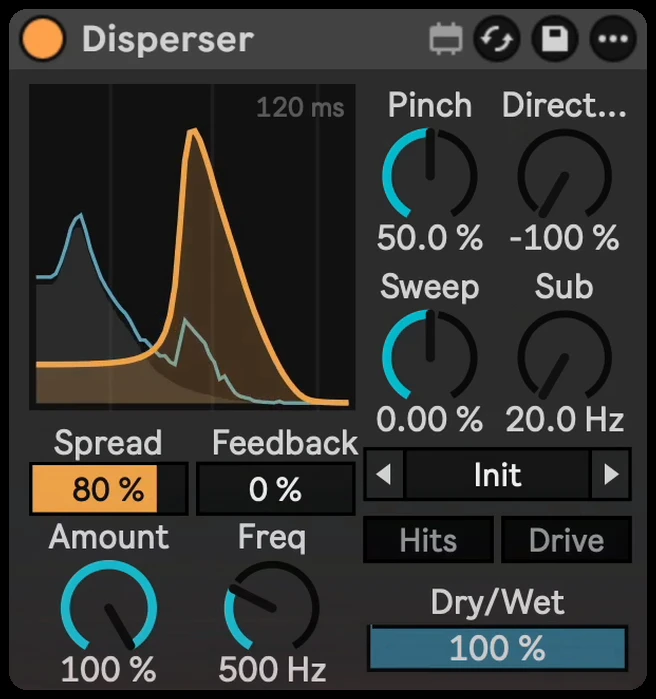
The grey filled trace shows incoming energy. The blue line predicts when that energy will emerge from the disperser, and the gold curve shows the approximate delay across frequencies. The small time label estimates the longest delay in that curve; it is not the device's latency reported to Live or the full length of a feedback tail.
This is a timing guide, not a final-output spectrum or level meter. It does not measure Drive's new harmonics, feedback repeats or the final Dry/Wet balance. Its input analysis combines left and right, so opposite-polarity stereo content can cancel in the display. Use your ears and Live's meters to judge the result.
Drag horizontally in the graph to move Freq, and vertically to change Amount. Hold Shift throughout a drag for finer movement. Hovering shows the effective note and frequency. Close the Sweep panel or preset list to return to the graph.
Main controls
| Control | What it does |
|---|---|
| Amount | How much the sound is smeared. More is a longer zap. At 0 % dispersion is bypassed (Drive and Feedback can still process). |
| Freq | The centre of the zap, 20 Hz to 20 kHz. With Live 12's Scale Mode on, the base frequency snaps to the nearest note of the song's scale. Sweep still travels continuously between notes. |
| Pinch | How focused the zap is around Freq. Low is a soft, wide smear; high is a sharp, ringing laser tone. |
| Direction | Which way the zap sweeps. 0: both sides move into Freq. Up (+): lows come first and it sweeps up. Down (-): highs come first and it sweeps down, like a laser "pew". |
| Sweep | On every hit, Freq jumps up (+) or down (-) by up to 3 octaves and slides back. Plus gives the classic falling "pew", minus a rising "bwip". |
| Sub | Routes the low-frequency part around the zap to help keep a kick's body solid. The crossover is gradual, so listen around the split as you adjust it. All the way left (20 Hz) is off. |
| Spread | Adds width in the sides. That extra width cancels when summed to mono, leaving the processed mono zap. It does not restore the original dry sound in mono. |
| Feedback | Sends the zap back through itself, so it repeats and rings longer, each repeat a little darker, like a spring. |
| Dry/Wet | How much of the effect you hear. In-between values also give a phaser-like colour. |
The Sweep panel
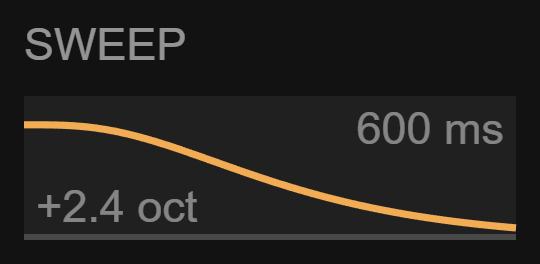
Pitch-path detail with Sweep at +80 %, Auto off, Time 600 ms and Curve +100 %. Rendered from the released display code with approximate fonts.
The small arrow next to Sweep opens its panel (click it again or the x to close):
- Auto (on by default): the timing follows an estimate of the zap's length, so it responds to the main sound controls.
- Time (Auto off): 10 ms to 3 s. At Curve 0, this is approximately the time to return 95 % of the way to the base frequency, rather than a hard stop. Other Curve settings change the progress of the return.
- Curve: the shape of the sweep. 0 is the classic fall; minus drops fast with a long tail; plus holds the jump, then dives.
Sweep needs a nonzero Sweep setting and detected hits to move. Direction shapes the order in which frequencies emerge; Sweep moves the whole zap's centre over time. Try changing one at a time to hear the difference.
Hits and HQ Drive
- Hits: emphasizes attacks by sending more of each detected onset into the zap and routing the remaining high-frequency sustain around it. It is not a gate that cuts off the effect's tail: earlier zaps and Feedback can keep ringing after the attack.
- HQ Drive: grit and bite on the zap only (the dry sound and the Sub band stay clean). Off: no saturation and zero added latency. On: 4x oversampled saturation with 32 samples of latency (about 0.67 ms at 48 kHz), reported to Live. Switching fades the audio briefly while the timing changes, so choose it before you record.
Presets
The arrows step through the presets; click the name for the list. An asterisk marks a preset you have edited. 20 presets: Init, Snare Laser, Kick Thwip, Pew Pluck, Laser Drop, Spring Echo, Wide Zap, Zap Clap, Bwip Rise, Neuro Bass, Dub Spring, Soft Smear, Long Fall, Snappy Pew, Metal Hit, Kick Click, Focused, Kick Body, Soft Pluck and Dark Spring. Presets also recall Hits and HQ Drive (every factory preset has both off).
Choosing a preset replaces the sound settings, including Dry/Wet and Sweep's Auto, Time and Curve. If HQ Drive was on, choosing a factory preset also changes the latency back to zero. Save a device preset or your Live Set to keep a sound you have edited; restoring the saved factory-preset name does not reapply that factory sound over your saved control values.
Good to know
- Zero added latency with HQ Drive off; 32 samples with HQ Drive on.
- The processing has changed since earlier releases. Keep the earlier Disperser in projects where you need the exact original sound.
Install
Drop Disperser.amxd on an audio track, or save it into your User Library (Presets / Audio Effects / Max Audio Effect). Needs Ableton Live with Max for Live, on Mac or Windows. Questions: [email protected].