 ELXR
Harmonics manual
Written for version hxa10tm.
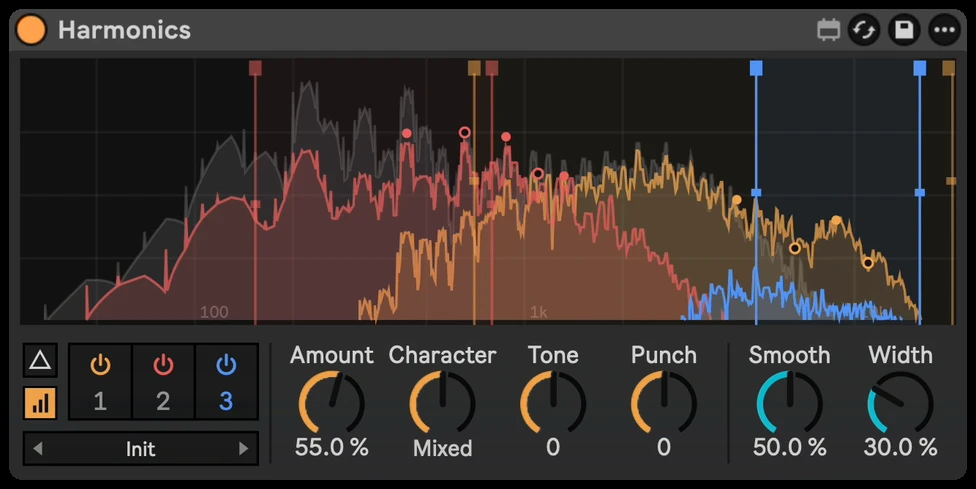
Harmonics is a harmonic exciter for Ableton Live (Max for Live). It generates new harmonics from the frequency ranges you choose and mixes them with your sound, from soft even warmth to buzzy odd bite. The ranges select the source material; the new harmonics can extend above them. The display shows your sound and the harmonics each band adds.
Click any knob and type a value. Use Delta or a band’s Solo button to hear the added layer while you adjust it.
Quick start
- Drop Harmonics on a track that plays (a synth, a vocal, a drum bus). It loads with band 1 on, exciting everything from 2 kHz up.
- Turn up Amount until you hear the sound open up, then back it off a little.
- Drag the band's two lines on the display to choose which part of the sound gets excited.
- Turn Character left for rounder, warmer harmonics or right for more bite.
- Click Delta (the triangle) to hear only what Harmonics adds; click it again to go back.
The display
- Your incoming sound is drawn in grey. Each band draws the harmonics it adds in its own colour, so you can see what changes and where.
- Each band has two vertical lines: Low (the lowest source frequency it listens to, 40 Hz to 16 kHz) and High (the highest, 200 Hz to 20 kHz). Drag them to set the source range. These are filter boundaries, not a limit on where the generated harmonics can appear.
- Drag inside an active band horizontally to move its range while keeping its width; drag vertically to change Amount. The two edge lines adjust Low and High separately.
- Markers on the peaks show the strongest note in the band and its multiples where the band adds something: even and odd harmonics are drawn differently, so you can see Character at work.
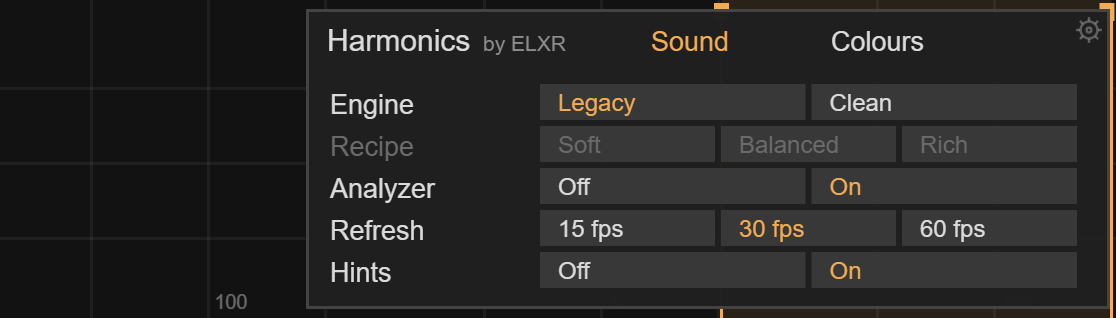
- The analyzer can be switched off in Settings (Analyzer) and its frame rate lowered (Refresh) to save CPU.
Bands
Harmonics has three independent bands. The band selector under the display shows them as 1, 2 and 3:
- The power button above a number switches that band on or off. Band 1 starts on, bands 2 and 3 start off.
- Click a number to select the band. The knobs (Amount, Character, Tone, Punch) then show that band's settings.
- S solos an enabled band: you hear only that band’s added harmonics. Click it again to leave Solo, or click another enabled band’s S to switch. Turning the soloed band off also ends Solo. Solo is temporary and is not saved with the Live Set.
Use one band for most jobs. Add a second or third when different parts of the sound need different treatment, for example warmth on the low mids and air on the top.
Band controls
| Control | What it does |
|---|---|
| Amount | How much of the added harmonics you hear (0 to 100 %). |
| Character | Even harmonics (left) are rounder and warmer; odd harmonics (right) add bite and buzz. The centre is a mix. |
| Tone | Makes the added harmonics darker (left) or brighter (right). |
| Punch | Right puts the harmonics on the attacks; left holds them up in the sustain and tails. 0 is even. |
Global controls
| Control | What it does |
|---|---|
| Smooth | Softens harshness in the added harmonics (all bands). |
| Width | Spreads the added harmonics across the stereo field. It changes the added layer rather than the original stereo image; Auto Gain can still adjust the overall output level. |
| Delta (triangle) | Hear only the added harmonics. Great for setting the ranges. |
| Auto Gain | Adjusts output gain using the average input and processed signal levels. On by default. It helps comparisons, but a change in tone or transients can still change perceived loudness. |
| HQ | Cleaner high frequencies, at a higher CPU cost. Off by default. |
Presets
Click the preset name under the band selector to open the list; the arrows step through it. Harmonics has 59 factory presets in 10 folders:
- Essentials: Init, Subtle Air, Warmth, Presence, Full Exciter, Wide & Bright
- Synths, Leads & Plucks, Pads & Keys, Bass, Vocals, Drums, Instruments, Mix & Master and Character, for example Synth Sparkle, Pluck Snap, Pad Shimmer, Phone Bass, Vocal Air, Kick Click, Mix Polish and Lo-Fi Grit.
A factory preset recalls all three bands, their positions, Smooth, Width, Engine and Recipe. It also turns Auto Gain on and exits Delta and Solo, so you hear the preset in the full mix. HQ and your interface preferences stay as you set them.
If you change Engine or Recipe while browsing, remember that the next preset recalls its own choices. Use Live’s device presets to save your own complete settings.
Settings (the gear)
The gear opens the Settings card. It has two pages:
- Sound: Engine (Legacy or Clean; Clean reduces source leakage and chord distortion), Recipe (Clean only: Soft is gentler, Balanced is the default, Rich adds upper harmonics), Analyzer (Off / On), Refresh (15, 30 or 60 fps; lower saves CPU) and Hints (short explanations on hover).
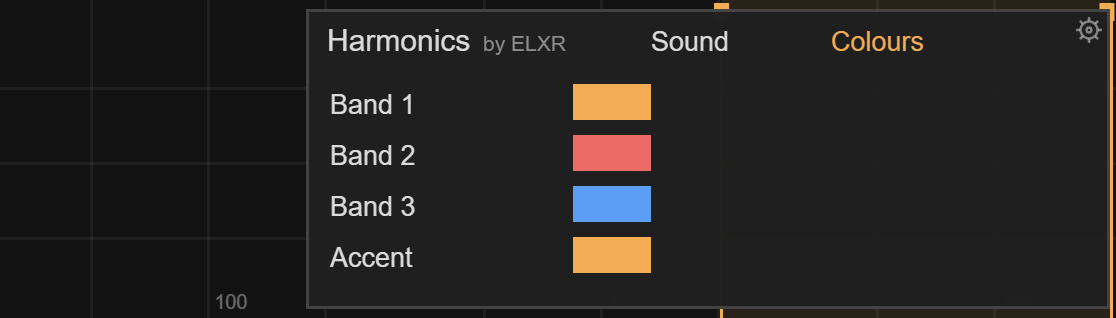
- Colours: four swatches—Band 1, Band 2, Band 3 and Accent. Click a swatch to pick a colour. After changing it, the small x beside the swatch restores its default.
Click the gear again to close the card.
Good to know
- Harmonics adds no latency.
- Band settings, global sound controls and appearance settings are saved with your Live Set. The sound controls and band ranges can also be automated. Solo is a temporary audition state.
- Turn Delta and Solo off before judging the full mix or exporting. Let Auto Gain settle after a change, and compare at a similar listening level.
- This release’s Settings card contains Sound and Colours controls. It does not contain website or feedback links.
- Keep the original device in older projects when exact recall matters. Replacing it with another build or changing Engine can change the sound.
Install
Drop Harmonics.amxd on an audio track, or save it into your User Library (Presets / Audio Effects / Max Audio Effect). Needs Ableton Live with Max for Live, on Mac or Windows. Questions: [email protected].