 ELXR
Rhythmic Gate manual
Written for version d35m.
Rhythmic Gate draws a volume pattern that repeats in time with Live: trance gates, pumps and rhythmic shapes. Pick one of 104 built-in patterns, roll a random gate, or paint your own, up to 64 steps.
Click Swing, Smooth, Complexity or Map Min / Max and type a value, then press Enter.
Quick start
- Put Rhythmic Gate on a pad, chord or synth track, after the instrument.
- Press play. It loads on Trance, a classic trance gate, in time with Live.
- Try other patterns: the arrows next to the preset name step through them; click the name for the full list.
- Or roll the dice for a random gate. Complexity sets how busy it gets.
- Turn up Smooth if the steps click, and Swing to make it groove. Depth below 100 % keeps the gaps from going fully silent.
The graph
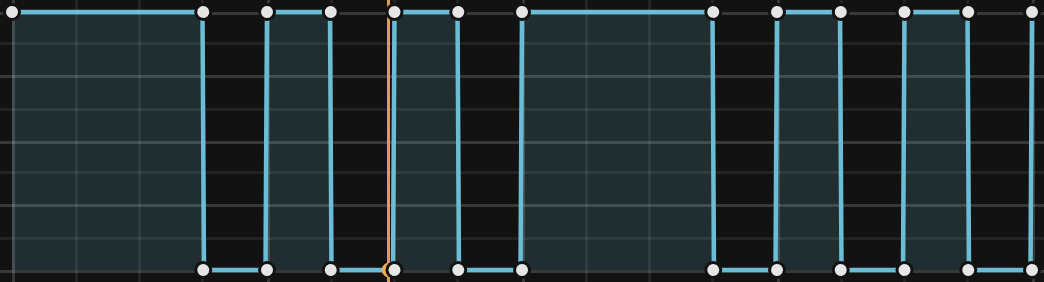
The graph shows one cycle of the shape, and the playhead shows its current position. In the compact editor, more than 32 steps wrap into two rows, with the first half on top; Expand keeps one row. The points show the shape you drew.
Volume display limitation: below full Depth, the blue line and playhead dot move toward the bottom even though the actual volume dips become shallower. At Depth 0 the audio is unaffected, even when the blue line sits at the bottom. Use the Depth value and your ears to judge the amount. In Map mode the blue line shows the shape after Depth, before Min and Max set the target range.
Tools
The buttons under the graph, from the left: Block, Draw, Clean, Select, then Copy and Paste. A lit tool is on; with no tool on you edit points. Hover a button and its name shows next to the buttons.
- Block (on when the device loads): click or drag to fill whole grid columns at the height you click. The quickest way to paint a gate.
- Draw: drag freehand; it is tidied into a few points (two per grid column, straight stretches merged).
- Clean (works in any mode): each click removes about a third of the removable points and re-fits the curves to approximate the shape. Listen after cleaning a detailed pattern.
- Select: click or drag over grid columns to select them (click a lone selected column again to deselect). Copy keeps that part; Paste puts it at the start of the selection, or Option-click (Alt-click on Windows) a column to paste right there. Pasting again straight away continues behind the last paste, so a copied beat repeats quickly.
- Point editing (no tool on): click to add a point, drag to move it (hold Option / Alt to move it freely up and down, Cmd / Ctrl to move it freely left and right), drag the hollow handle between two points to bend the line (Shift for fine), double-click a point to delete it, double-click a handle to straighten the line. The first and last points share a height. An adjacent vertical step can still make an abrupt transition at the loop boundary; use Smooth to soften it.
Grid
The Grid box (to the right, above Swing, e.g. "16 x 8") sets the columns (steps) and rows. Drag a number up or down; double-click it for 8.
- Columns double or halve: 1, 2, 4, 8, 16, 32, 64, or 3, 6, 12, 24, 48 on triplet grids. Rows go from 1 to 16.
- More steps repeat the pattern (8 steps become the same 8 twice) and adjust Rate to try to keep each step the same length; then vary the copies. At the ends of a Rate range, the cycle cannot stretch or shorten further, so the step timing changes. Check Rate after changing Grid. Fewer steps keep the first steps and remember the rest, so going back up brings them back. Loading a preset or rolling the dice forgets the hidden part.
- Points always snap to the grid; hold Option / Cmd while dragging to move one freely.
Rate
The menu next to the Rate dial picks the Rate type; the dial then shows that type's rate.
| Rate type | Rate | Notes |
|---|---|---|
| Sync | 8 Bars, 4 Bars, 2 Bars, 1 Bar, 1/2 (default), 1/4 ... 1/64 | Straight notes, synced to Live's tempo and transport. |
| Triplet | 1/1 T to 1/32 T | Triplet notes. |
| Dotted | 1/1 D to 1/32 D | Dotted notes. |
| 16th | 1/16 to 64/16 | In 4/4, one cycle = 1 to 64 sixteenth notes; odd lengths loop against the bar. See the timing limitation below for other signatures. |
| Hz | 0.01 to 40 Hz | Free running, not tied to Live's tempo or transport. |
Timing outside 4/4: the setting labelled 1 Bar lasts four quarter-note beats. The 16th type can also differ from its labelled count: for example, 20/16 in 3/4 lasts four quarter-note beats, rather than five. Check the cycle against your arrangement. The longer 2 / 4 / 8 Bars settings follow bars, but their smoothing is calculated using a 4/4 cycle length; listen as you adjust Smooth in another time signature.
Swing, Smooth and Depth
| Control | What it does |
|---|---|
| Swing | 0 to 100 %. Delays every second column within each pair for a shuffle feel. Use an even number of columns for regular pairs; with 16 columns it swings sixteenths of the cycle. |
| Smooth | 0 to 100 %. Rounds jumps and corners to reduce clicks while retaining the drawn volume range. The audio engine still applies a small amount of smoothing at 0 %. Rate and tempo affect the result; at fast Rates, higher settings can reach the same maximum rounding. Listen to sharp attacks as you adjust it. |
| Depth | 0 to 100 %. In Volume mode, lower values make the dips shallower; 0 % leaves the audio level unchanged. In Map mode, lower values bring the movement toward Min; 0 % holds the mapped control at Min. |
Random gates
Press the dice for a new gate. It follows the Rate type (shown on the dice button): Sync builds straight gates from beat-long cells, Triplet groups of three, Dotted 3-3-3-3-4 style groupings across the bar, 16th odd groupings of 2s and 3s, and Hz is free. It uses the grid you have set; if a style needs a different grid (12, 24 or 48 columns for Triplet, 16, 32 or 64 for the others), the nearest one is used and Grid follows.
- Block on: flat gate blocks. Block off: curved shapes (plucks, swells, pumps).
- On 32 or 64 columns (24 or 48 for Triplet) every column is its own step, built as bars that vary more with Complexity.
- Complexity (0 to 100 %, default 50 %): lower is simpler (one repeating cell), higher is more intricate (more different cells, a fill at the end, fast repeats and quieter ghost steps). Changing it re-makes the last roll, so you can dial in a roll you like. Double-click for 50 %.
- Keep one you like with + Save current in the User folder of the preset list.
Presets
The arrows next to the preset name step through every preset. Click the name to open the list over the graph: first the folders, then click a folder for its presets. Click a preset to load it; click the preset name again to close the list.
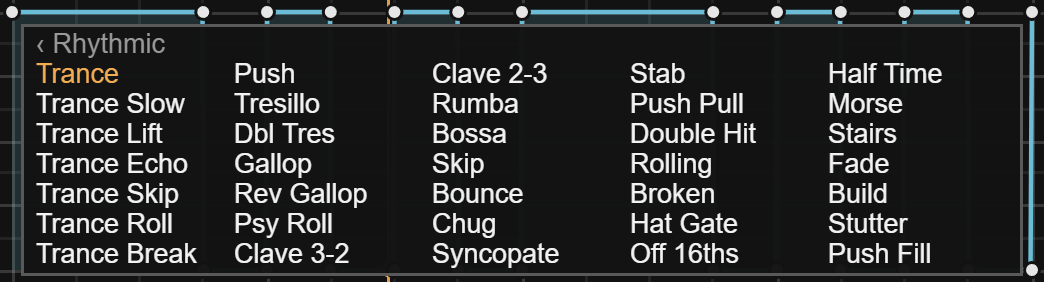
- 104 built-in presets in five folders: Basic (13 gates), Rhythmic (35, starting with the Trance family), Triplet (17), Pump (20) and Shapes (19). Basic, Rhythmic and Triplet presets set Rate type, Rate and grid columns as well as the shape. Pump and Shapes keep your current Rate and grid. Check the controls after loading a preset if you want to preserve your previous rhythm.
- Your presets are small text files in your User Library, in Presets / Audio Effects / Max Audio Effect / Rhythmic Gate Presets. They start in a folder called User (last in the folder list); every other folder you make there shows up as its own folder in the list.
- In one of your folders, + Save current saves the shape and its grid columns as "User 1", "User 2" and so on, or using the folder name in other folders (rename the file in Finder or Explorer), and Show in Finder opens the folder. Hover one of your presets and click its x to delete it, or right-click (Ctrl-click) it for Delete, Replace with current and Show in Finder.
- Open folder (at the bottom of the folder list) opens the presets folder, so you can make new folders there.
- User preset files store the shape and column count only. They do not restore Rate, grid rows, Swing, Smooth, Depth or a mapped target. Save the Live Set to retain the whole setup.
- Windows folder limitation: the folder-opening commands can fail to open Explorer. Open your User Library manually and navigate to Presets / Audio Effects / Max Audio Effect / Rhythmic Gate Presets. If the first save does not appear, create its User subfolder first, then reopen the preset list and save again. Confirm the new preset appears before relying on it.
Volume or Map
The Volume | Map switch under the presets:
- Volume (default): the shape moves this track's volume.
- Map: the shape moves one knob anywhere in Live instead (a filter cutoff, a send, another device), and the audio returns to its original level after a short transition. Click Map to switch; then click Map again (it lights up when you hover it) and it flashes: click the knob you want to move. Its name then shows on the button. Click again while it flashes to cancel; Option-click (Alt-click) to unmap.
- Min and Max (shown in Map mode) set the range the knob moves in: Min is the shape at the bottom, Max at the top. Drag, click to type, or double-click to reset. Set Min above Max to reverse the movement.
- Volume mode releases control of the mapped knob and keeps the target for when you switch back to Map. Depth 0 does not release the target: switch to Volume or unmap when you want to adjust it independently. Rhythmic Gate does not map to its own controls.
The Expand window
The Expand button at the right end of the top row opens a larger editor in its own window, with the tools, the grid, the rates, Swing and Smooth, and Depth. Edit in either one; the next press of Expand closes it. In the window, Swing and Smooth are sliders: drag them (Shift for fine), double-click for 0 %.
Good to know
- Rhythmic Gate has no added audio-path delay and processes stereo in, stereo out. Both channels receive the same volume curve; short envelope transitions are smoothed.
- With a synced Rate, stopping playback holds the curve at the stopped position; it does not automatically restore full volume. If an instrument becomes quiet while you play with transport stopped, set Depth to 0 or bypass the device. Restore your setting before playback. Hz keeps cycling independently of transport.
- Everything (the shape, grid, rates, the mapping and the controls) is saved with your Live Set. Rate, Swing, Smooth, Depth, Mode and Map Min / Max can be automated.
- Links to the ELXR website, this manual and feedback are not in the device yet; they come with a later update.
Install
Drop Rhythmic Gate.amxd on an audio track, or save it into your User Library (Presets / Audio Effects / Max Audio Effect). Needs Ableton Live with Max for Live, on Mac or Windows. Questions: [email protected].