 ELXR
How to check mono compatibility and phase in Ableton Live
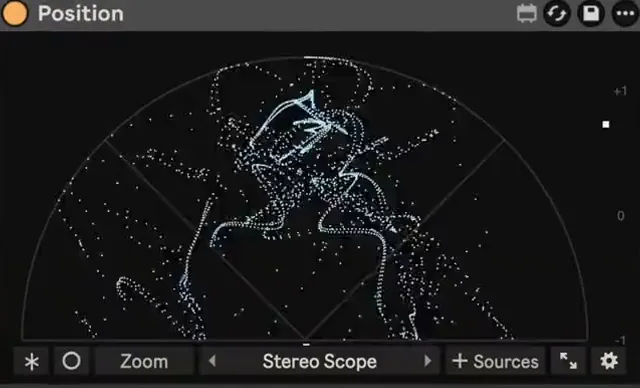
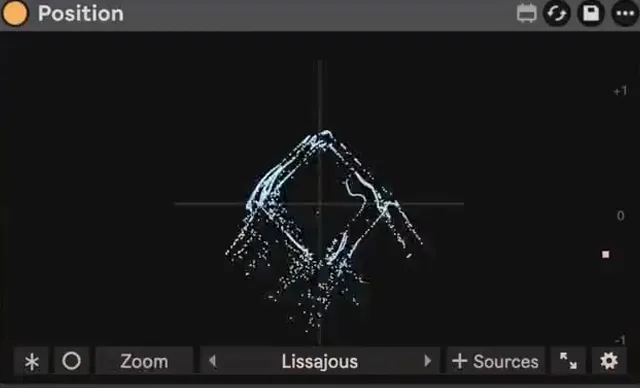
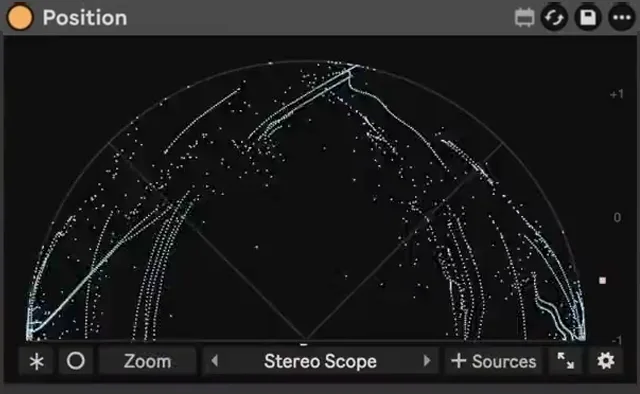
Put Utility on the master and switch on Mono. If a sound gets quieter or thinner, its left and right sides are cancelling. A stereo scope shows why: mono sound is a straight vertical line, wide sound fans out, and sideways shapes mean parts that fight each other in mono.
Why mono still matters
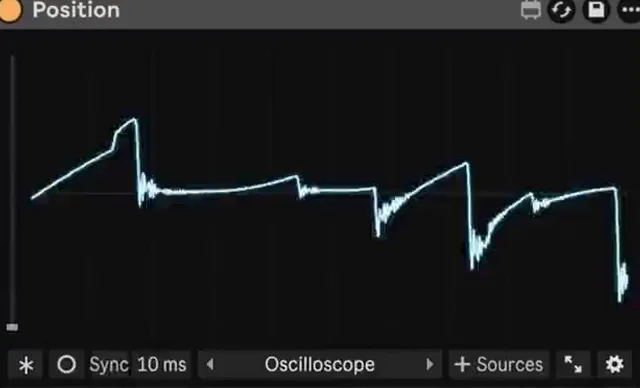
Plenty of people still hear your track in mono: phone speakers, Bluetooth speakers, club systems with mono subs, and some streaming on smart speakers. When the left and right channels are out of phase, they cancel when they're added together, so a wide synth or a stereo reverb can drop in level, or vanish, the moment the sound gets summed.
See your own mix's correlation and width with Position →
The fix is usually small: narrow one sound, mono the low end, or change one setting. The hard part is knowing which sound is the problem.
Check it with Live's own tools
1. The Mono switch
Put a Utility at the end of the master and turn on Mono. Play the loudest part of the song and switch Mono on and off. A good mix gets a little narrower, not quieter. Solo tracks while Mono is on to find the one that drops.
2. Bass Mono
Utility's Bass Mono keeps everything below the frequency you pick in mono. Low end is where phase problems hurt most, so 100–150 Hz is a safe start on the master, a bass group or a wide synth.
3. Your ears, and what they miss
Switching to mono tells you that something cancels, not what or where. Live's Spectrum shows frequencies, but not where sounds sit in the stereo field. For that you need a stereo scope.
Read a stereo scope
- Straight up and down: mono. Both sides are the same. Kicks, bass and lead vocals usually live here.
- A tall, fuzzy shape: healthy stereo. Mostly centered with some width, the shape of most good mixes.
- A round blob: very wide. Fine for pads and effects, but check it in mono.
- Leaning sideways, toward horizontal: out of phase. The two sides cancel in mono. This is the one to fix.
- Tilted left or right: the sound sits more on one side.
Step by step with Position
- Put Position on the master, or after the sound you want to check. Audio passes through unchanged, with no latency.
- Watch the Stereo Scope while the song plays. Every sample is a dot, so a sideways smear shows up straight away.
- Click a band in the Spectrum to hear just that range, and find where the problem lives: often the low end of a wide synth or a stereo bass.
- Add the suspect tracks as Sources to see each one in its own color on the same scope.
- Fix it: mono the lows with Bass Mono, narrow the sound, or reduce detune or chorus width, then check again.